
Mac malware detection and removal for macOS
 27.2 Golden Gate compatible
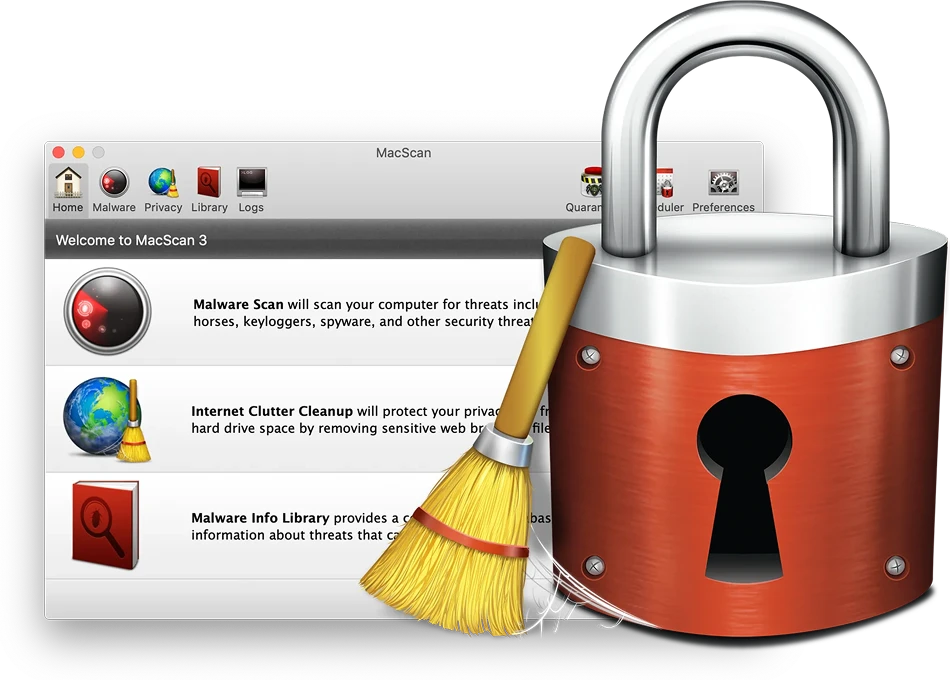

Malware Detection & Removal
Detect and remove Mac malware, including spyware, adware, and keyloggers.
Automatic Updates
MacScan checks for malware definition updates before each scan.
Four Scan Modes
Choose Smart, Quick, Full, or Custom Scan to check the locations you need.
Scheduled Scans
Set up regular malware scans at times that work for you.Mac security for a changing world
Mac malware is on the rise. And although Apple is a security-conscious company, they can’t always keep up with the surge in Mac malware threats. MacScan 3 is a malware detection and removal tool exclusively for macOS. Backed by our dedicated team of macOS security experts and malware researchers, MacScan 3 gives Mac users an extra layer of protection against the latest Mac malware threats.
-
 Smart Scan
will scan for malware in a targeted way, searching specific locations known to contain security
and privacy threats.
-
 Quick Scan
will scan all files in your home folder for malware and privacy threats (includes desktop
files,
documents, downloads, pictures, and more).
-
 Full Scan
will scan your entire hard drive for malware and privacy threats, ensuring comprehensive
coverage.
-
 Custom Scan
allows you to define and scan specific locations on your Mac for malware and privacy threats.










Detect & remove mac malware
MacScan 3 helps users detect, isolate, and delete all kinds of Mac security and privacy threats—from malware, stalkerware, and keyloggers to tracking cookies, cache files, and more. SecureMac’s threat research team updates MacScan 3 continuously to protect you from the latest macOS malware variants and privacy threats.
Clean up Internet clutter
Protect your privacy against data collectors, digital snoops, and advertisers trying to show you those creepy targeted ads! MacScan 3 helps you tackle your biggest privacy concerns with a single, easy-to-use app—no more digging through your web browser’s settings or hunting for hard-to-find storage locations in Finder!

Clean Up Cookies
Not all cookies are bad; some of them help your favorite websites remember your settings or keep you logged in. But privacy-invading tracking cookies are a whole different story. MacScan can automatically seek out these malicious cookies, deleting only blacklisted tracking cookies while leaving the rest of your browsing data in place.

Clear Browsing History
From medical appointments to your holiday shopping list, some things in your browsing history are for your eyes only! Don’t guess at which browser settings will delete those private details for good—let MacScan 3 clean your history for you.

Clear Browser Caches
Your browser stores cache files to help websites load faster. But these files can stick around long after you’re done with them—taking up valuable hard drive space. MacScan 3 helps you locate and remove these unnecessary files quickly and easily.

Remove All Download History
Your Mac keeps a record of every file you download—and doesn’t delete them by default. MacScan 3 lets you wipe your download history clean with a click, freeing up space and protecting your privacy.
Get to know MacScan
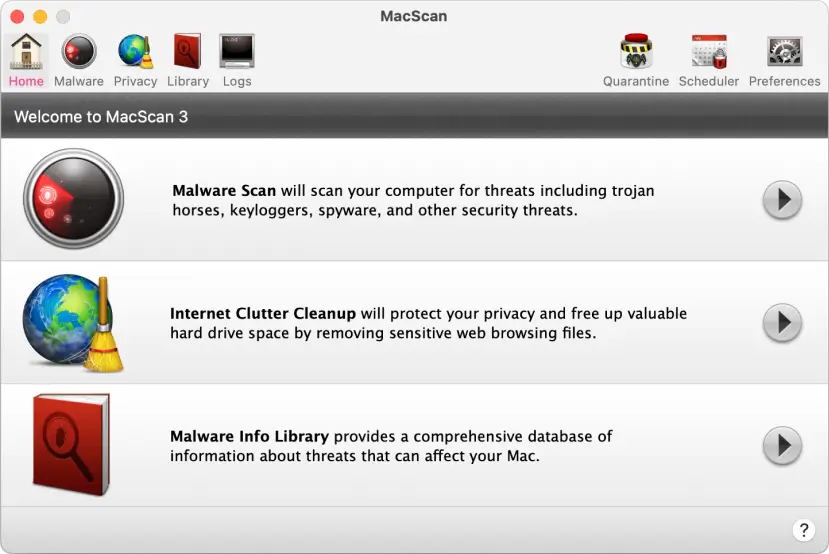
Explore scan logs, quarantine, scheduling, and privacy cleanup. Scroll through the screenshot to explore each feature.Select a green marker or use the arrows to see what each feature does.
System Requirements


MacScan FAQs
Get to know MacScan 3, from malware scans to everyday privacy cleanup.
What does MacScan 3 do?
MacScan 3 detects, isolates, and removes Mac malware and privacy threats, including stalkerware, keyloggers, and tracking cookies. It also helps clean up browsing history, browser caches, and download history.
Which scan mode should I use?
Smart Scan checks locations known to contain security and privacy threats. Quick Scan checks your home folder, Full Scan checks your entire hard drive, and Custom Scan lets you choose specific locations.
Can I schedule scans?
Yes. MacScan’s scheduler lets you automate scans so you can check your Mac regularly without starting each scan yourself.
Will MacScan delete all my cookies?
MacScan targets blacklisted tracking cookies while leaving other browsing data in place. Other cleanup options, such as browsing history and browser caches, let you address additional privacy concerns.
What happens when MacScan finds a threat?
Malware and potential security threats can be moved to quarantine, where they cannot interact with the rest of your system. Scan logs let you review MacScan’s detection activity.
Can I get a license for more than one Mac?
Yes. Choose a license for 1 Mac or 3 Macs in the license options at the top of this page. You can also choose a one-year or two-year term.