macOS Cybersecurity & Privacy in January 2026: What Every Home User Needs to Know
Why macOS Security Still Matters for Home Users
Apple often markets the Mac as “secure by design,” but security isn’t something you can set and forget. Every month brings new threats, new fixes, and new reasons for everyday users to understand how to stay safe online. Macs are popular with home users, creatives, and families — which makes them attractive targets for attackers.
Continuously Updating macOS Security Model
Apple is increasingly shifting from big, occasional security updates to smaller, background fixes that install automatically. This is part of a broader industry trend toward continuous protection — and it reduces the chance attackers can exploit known problems.
Why this matters to you:
Automatic security updates help ensure your Mac is protected even if you forget to click Update — but you still should check regularly that updates are enabled.
New Vulnerabilities Addressed in macOS Tahoe & Sequoia
Apple has continued to issue security updates for macOS Tahoe (version 26) and older versions like Sequoia (15.x). These updates plug holes that could allow attackers to crash applications, steal data, or run harmful code.
Example issues patched:
- Logging issues that exposed sensitive data
- Path-handling and memory bugs
- Kernel-level flaws that could be used to gain deeper access
Action for you:
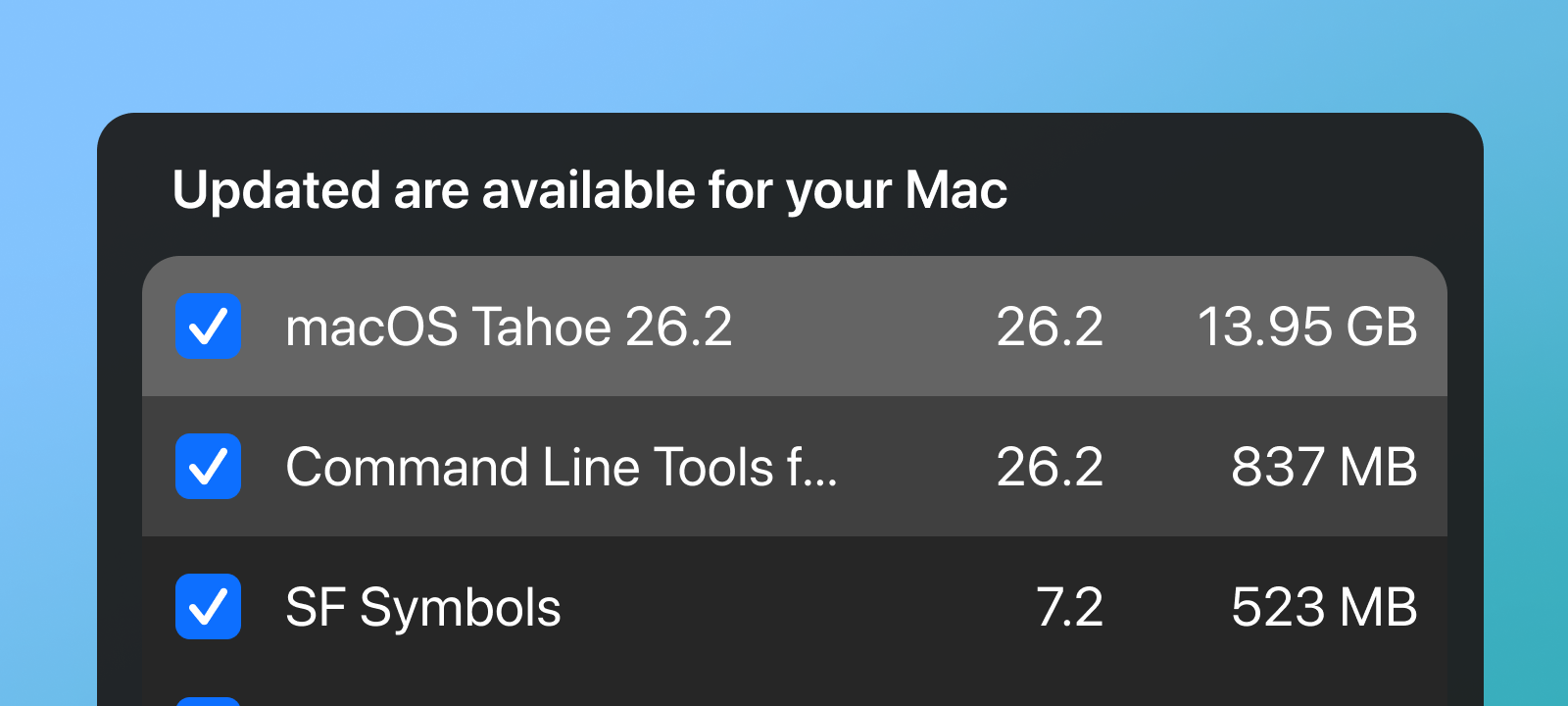
Always install the latest updates via System Settings > General > Software Update. Some security patches don’t install automatically.
Web Browser Risks: WebKit Zero-Day Exploits
Apple patched two zero-day bugs in the WebKit engine — the software that powers Safari and many other Mac browsers — that were already exploited in the wild.
What that means for home users:
Skilled attackers used these flaws to run malicious code just by loading a web page — and the bugs existed before Apple knew about them.
Your takeaway:
Be cautious visiting unfamiliar sites and make sure Safari and macOS are fully up to date.
End of Browser Support on Older macOS Versions
Google announced that Chrome will stop supporting macOS Monterey (macOS 12) by July 2026. That means no more security updates or compatibility fixes for Chrome on older Macs — increasing the risk if you stay on legacy systems.
Takeaway for readers:
If you’re running macOS Monterey and prefer Chrome, you may need to upgrade your OS or consider using Safari or another browser that still supports security patches.
macOS Malware & Attack Trends
Reports show that macOS malware detections — especially infostealers that steal passwords, crypto wallet data, and personal files — have roughly doubled over recent quarters.
Example traits of these threats:
- Often distributed via fake installers
- Can prompt you for your password through social engineering
- Target browser data, credentials, and files
Best defenses:
- Avoid downloading apps from outside the App Store or trusted developers
- Say no to unexpected password prompts
- Use a reputable malware scanner if you suspect an infection
- Upload your suspected malware sample to our SecureMac Malware Submission Page
Old Vulnerabilities Get a Second Life
Cybersecurity warnings show older vulnerabilities — even ones patched years ago — are still being targeted on unpatched Macs. This is especially true on machines that stopped receiving security updates.
Your action steps:
- Keep your macOS in a supported version
- Avoid running outdated software that no longer receives patches
How macOS Security Works — Easy Explanations for Home Users
To understand why updates matter, let’s look at the core built-in defenses in macOS:
Gatekeeper — Blocks Dangerous Apps
Gatekeeper checks apps before they can run on your Mac, ensuring they are signed by Apple-recognized developers.
Practical tip: Always download software from the Mac App Store or from known developers.
System Integrity Protection (SIP)
SIP is a macOS security system that prevents viruses or malware from modifying critical system files. Attackers try to bypass SIP because if they succeed, they could do almost anything. Some vulnerabilities patched in recent years attacked SIP directly, showing that even strong protections can have weaknesses.
Good news: Most users don’t have to touch SIP — it stays enabled by default.
XProtect & Malware Scanning
macOS has a built-in malware detector (XProtect) that scans files and blocks known threats before they run. But new malware strains sometimes appear before XProtect is updated — which is why updates are essential.
Privacy Settings Every Mac User Should Check
Strong privacy settings mean your data stays your data. Here are the most important ones:
App Permissions
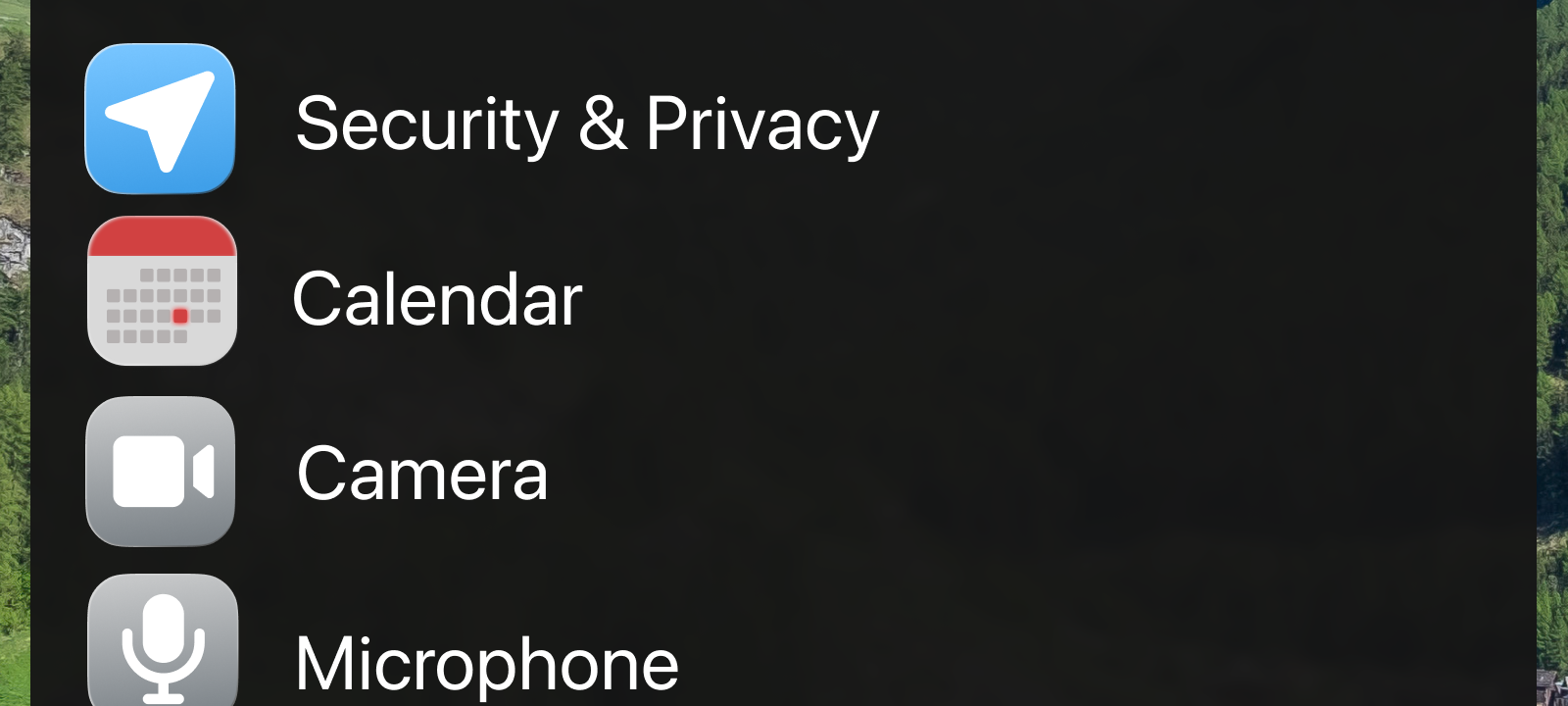
Go to System Settings > Privacy & Security and review apps that have access to:
- Microphone
- Camera
- Location
- Contacts
Remove access from any app you don’t trust.
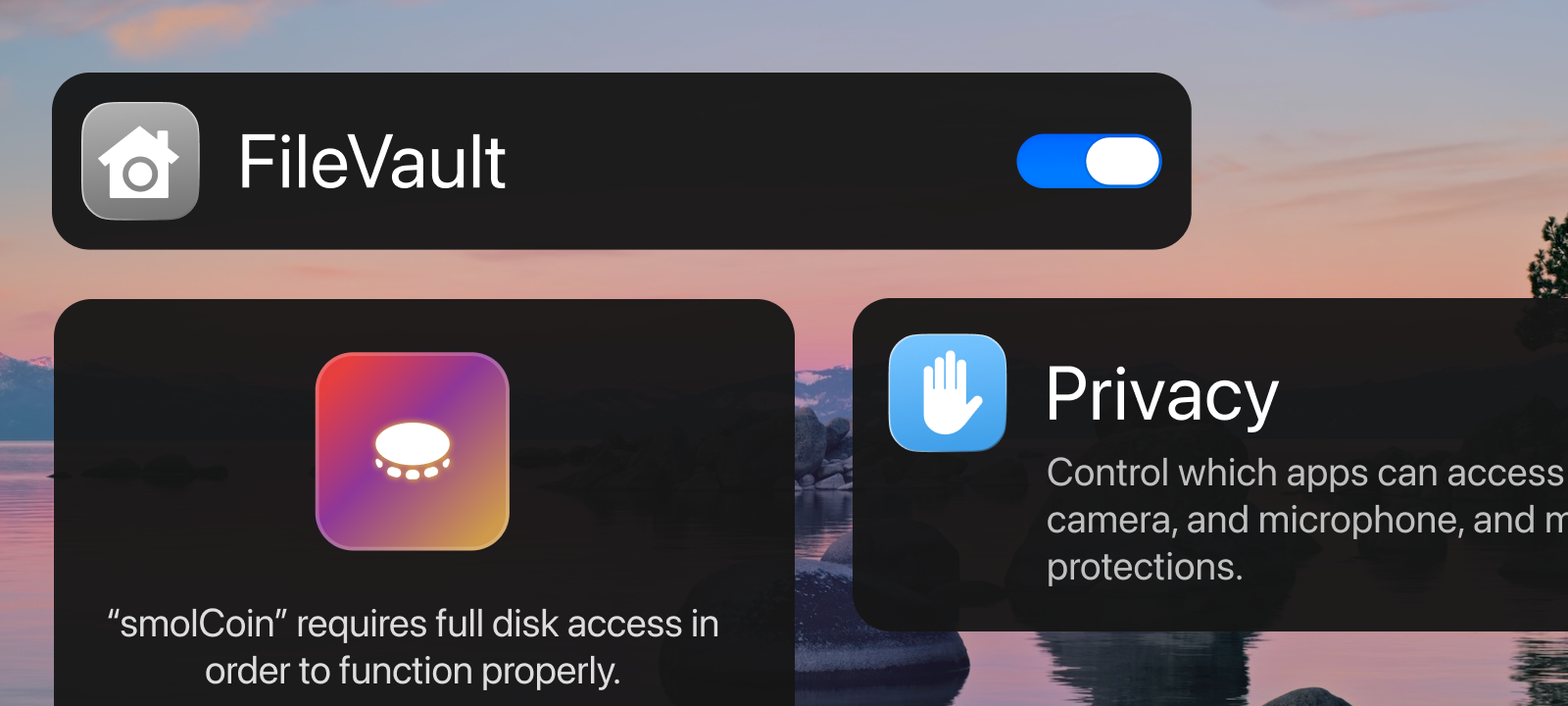
Full Disk Encryption with FileVault
Enable FileVault to encrypt your entire disk. That protects your files if your Mac is lost or stolen.
Safari Privacy Features
Safari includes protections against cross-site tracking and fingerprinting that help keep your browsing more private.
Simple, Practical Security Checklist
Here’s what you should do this week:
- Check for system and Safari updates
- Enable automatic updates if not already set
- Review app permissions
- Back up your Mac with Time Machine
- Only install software from trusted sources
- Say no to unexpected password prompts
Common Misconceptions — Clarified
Misconception: “Macs don’t get malware.”
Truth: Macs see fewer attacks than Windows PCs — but threats have grown dramatically in recent years.
Misconception: “My antivirus scanner will catch everything.”
Truth: Antivirus helps, but safe habits and keeping your system updated are far more effective.
Recommended Tools for Home Users
- Built-in macOS security features (already discussed)
- A reputable malware scanner (choose one you trust)
- Password manager (to protect and generate strong passwords)
- VPN if you use public Wi-Fi
How to Check Your Mac for Malware
You don’t need to be an expert to look for signs of malware on your Mac. Most modern macOS threats try to stay quiet, so the goal here isn’t panic — it’s awareness.
Follow these steps in order. You can stop at any point if things look normal.
Check Login Items
Malware often tries to run every time your Mac starts.
Where to look:
- Open System Settings
- Go to General → Login Items
What to look for:
- Apps you don’t recognize
- Anything with a vague name (random letters, “helper,” “update,” etc.)
- Software you don’t remember installing
If you see something suspicious, turn it off and look up the name online before deleting it.
Review Background Processes
Some malware hides as a background service.
Where to look:
- Open System Settings
- Go to General → Login Items
- Scroll down to “Allow in the Background”
Red flags:
- Unknown developers
- Items that don’t clearly match apps you use
If you’re unsure, disable it first — you can always re-enable it later.
Use Activity Monitor to Spot Obvious Problems
Activity Monitor shows what’s running on your Mac right now.
Where to find it:
- Open Finder → Applications → Utilities → Activity Monitor
What to look for:
- Apps using very high CPU when you’re not doing anything
- Processes with strange names
- Multiple copies of the same unknown process
Check for Unexpected Password Prompts
Modern macOS malware often relies on tricking you.
Warning signs:
- Password prompts when installing nothing
- Requests to “fix” or “scan” your Mac
- Pop-ups claiming your Mac is infected
macOS will clearly tell you why it needs your password.
If it’s vague or urgent, cancel it!
Run a Trusted Malware Scan
macOS includes built-in protection, but a second opinion helps. Email our friendly support team at support@securemanc.com with what you’ve found.
Good practice:
- Use a well-known, reputable scanner
- Avoid “free scan” websites or pop-ups
- Download directly from the vendor’s official site
A scan should take only a few minutes and can confirm whether anything suspicious is present.
Look for Signs Something Isn’t Right
You may want to investigate further if you notice:
- Sudden browser redirects
- New browser extensions you didn’t install
- Slower performance out of nowhere
- Ads appearing outside your browser
None of these guarantee malware — but together, they’re worth checking.
If You Find Something Suspicious
Don’t panic.
- Disconnect from the internet
- Don’t enter your password again
- Remove the item only after confirming what it is
- Change important passwords afterward
- Get professional help if you’re unsure
The Big Takeaway
Most Mac malware relies on tricking users, not hacking the system.
If you:
- Keep macOS updated
- Avoid shady downloads
- Pay attention to prompts
Resources Used, Citations, and Further Reading
- SecureMac
SecureMac Monthly macOS cybersecurity & privacy overview - Apple Support
Recent security content in macOS Tahoe and Sequoia - The Hacker news
Reports on Apple WebKit zero-day exploits - Stack.watch
Stack.watch macOS vulnerability data - The Times of India
Google dropping Chrome support for macOS Monterey - Cybernews
Mac malware/information stealer trends - Cyber Security News
CISA alerts on old vulnerabilities still exploited
Research on SIP bypass vulnerabilities - Jamf
Security 360 reports on macOS security trends
 SecureMac is dedicated to cutting through the noise and helping people stay safe, informed, and confident with their Macs. Lover of all things mac-security.