MacOS Cybersecurity & Privacy in February 2026
Why macOS Security Matters Today
For many years, Mac computers were seen as “secure by default.” But in 2026, that perception is changing. Macs remain strong platforms, but attackers are getting smarter — and home users must stay informed. Apple’s built-in protections have improved, yet threats still target everyday users through malware, malicious files, phishing, and vulnerabilities in commonly used apps.
In this article, we’ll unpack the latest developments in macOS cybersecurity and privacy — in plain English — with actionable tips you can use right now.
Apple’s Evolving Security Model
Apple is moving macOS away from the old “big update, restart, done” model. Instead, it now pushes continuous background security updates that install quietly without restarting your Mac.
What This Means for You
- Security patches for critical parts of macOS — like WebKit, Safari components, and antivirus signatures — can now be delivered in small bursts.
- If you keep automatic updates turned on, you’ll get these patches without even noticing.
- This makes your Mac safer against new threats that appear between major system updates.
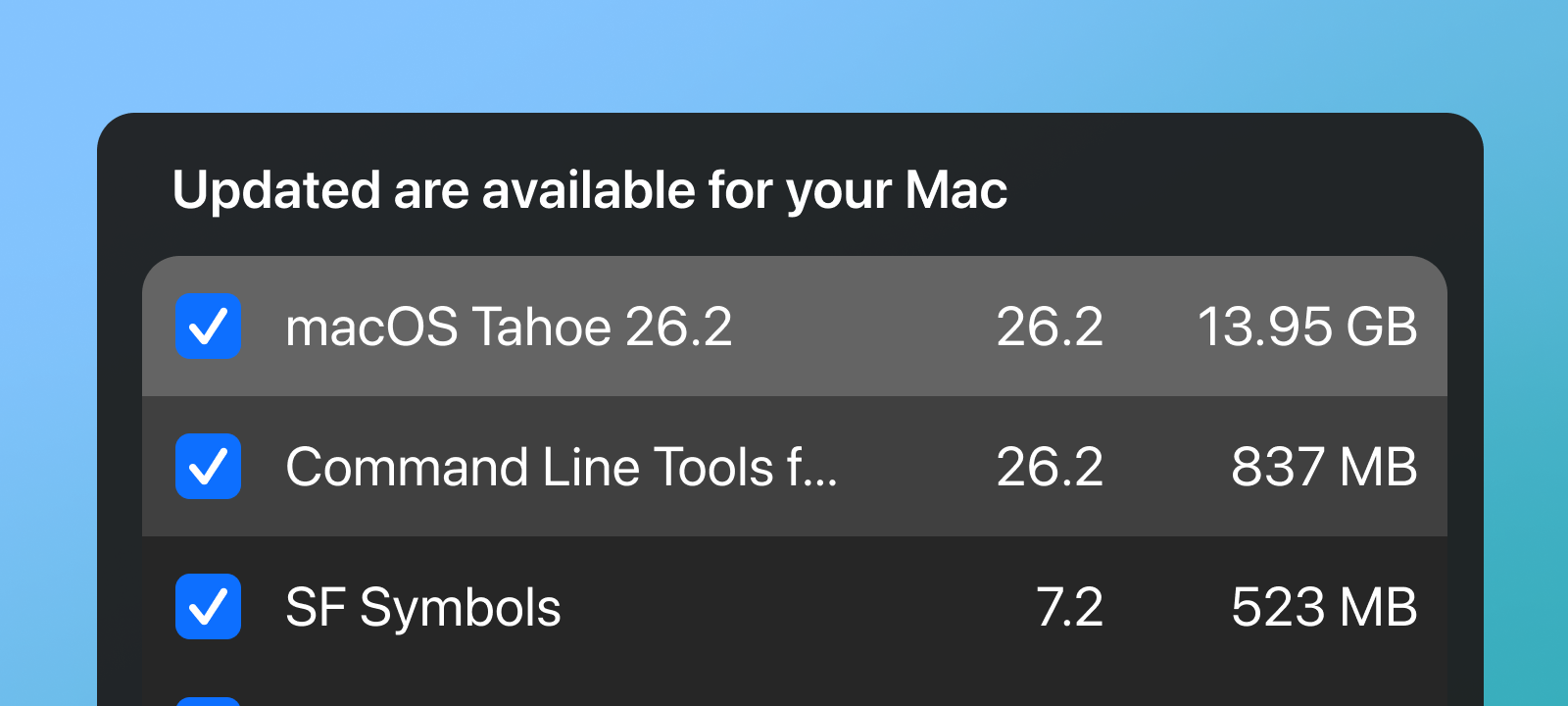
Tip: Make sure Automatic Updates are enabled in System Settings → General → Software Update.
Recent macOS Vulnerabilities Home Users Should Know
Even with strong protections, vulnerabilities do happen. In late January 2026, security agencies CERT-In and Apple released patches for multiple issues affecting macOS applications like Pages and Keynote. These were rated as medium severity, but they could lead to data leaks if left unpatched.
Key Issues Patched
- Out-of-bounds read issues in productivity apps. These could be triggered by maliciously crafted documents.
What You Should Do
Always install the latest macOS updates and update Apple apps like Pages and Keynote through the App Store or Software Update panel.
Built-In macOS Protections — How They Work
macOS includes powerful defenses that most users never have to think about — but should understand.
Gatekeeper
Gatekeeper helps prevent malware by allowing only verified applications to run. It checks that code is signed and notarized before launching.
XProtect
XProtect is Apple’s built-in malware scanner. It automatically detects and blocks known threats and can even remediate malware that’s already run.
Notarization and Revocation
Apps you download outside the Mac App Store must be notarized — scanned by Apple for malware. If a notarized app later becomes malicious, Apple can revoke it to stop it from running.
These protections work quietly in the background to defend you without daily effort — but they aren’t perfect.
The Growing Threat of Malware on macOS
Contrary to old myths, Macs do get malware. In fact, global cybersecurity reports show that macOS malware detections — especially infostealers designed to steal passwords and other data — have been increasing sharply.
Malware today includes:
- Infostealers — steal saved passwords, crypto wallets, and personal files.
- Fake update lures — attackers trick users into installing malware disguised as updates.
Real-World Example
Some malware authors now disguise malicious payloads inside update notifications from websites or apps you might think you trust.
Are Third-Party Antivirus Tools Still Relevant?
A recent Macworld article discussed whether Macs need antivirus in 2026 or if Apple’s built-in tools are enough. The consensus: Apple’s tools are strong for everyday use, but additional layers can help — especially if you’re at higher risk (e.g., handling sensitive data or connecting to unsafe networks).
When Antivirus Helps
- You frequently download software from the internet.
- You connect to public Wi-Fi often.
- You want an extra safety net beyond Apple’s built-in protections.
Tip: Look for reputable, macOS-focused antivirus tools if you choose to add one.
Practical Security Tips for Home Users
Keep Everything Updated
Install system updates promptly — this closes known security holes.
Be Wary of Unknown Downloads
Never run software from unknown websites or installers you don’t recognize.
Use a Password Manager
Strong, unique passwords protect you against credential theft.
Turn on Two-Factor Authentication
Whenever possible, protect your Apple ID and accounts with 2FA.
Mind Your Network
Avoid using sensitive apps on public Wi-Fi without a VPN.
Privacy Features You Should Enable
macOS offers several privacy features that good security depends on.
- App Permissions Controls: Make sure apps only get access to things you choose.
- Safari Privacy Enhancements: Apple has strengthened Safari to block cross-site tracking.
- iCloud Private Relay (optional): Additional web traffic privacy option in iCloud+.
These settings help keep your data private from websites, trackers, and applications.
Resources Used — References & Further Reading
- SecureMac
Overview of macOS security and threats this month - Gadgets 360
In advisory on macOS vulnerabilities and Chrome risks - Apple Support
List of recent security releases - MacRumors
Report on background security updates - Apple Support
Malware protection (XProtect, Notarization - Cybernews
Infostealer increase and Mac malware trends - Proofpoint
Fake update threats and new malware delivery methods - Macworld
Whether Macs need antivirus software
 SecureMac is dedicated to cutting through the noise and helping people stay safe, informed, and confident with their Macs. Lover of all things mac-security.