macOS Cybersecurity & Privacy 2026: What Home Users Need to Know This Month
Apple markets the Mac as secure by design — and in many ways, that’s true. macOS includes strong protections that most people never have to think about. But security is not static. Every month brings new changes, new threats, and new ways attackers try to get around built-in defenses.
This article looks at the latest macOS security and privacy developments, explains what they mean in plain language, and offers practical advice for everyday Mac users. You don’t need to be technical to stay safe — you just need to understand what’s changing.
How Apple’s Security Model Is Changing (And Why It Matters)
Security Used to Be “Install and Forget”
For years, macOS security updates arrived mostly as part of big system updates. You would see a notification, click “Install,” restart your Mac, and move on.
That model is slowly changing.
Apple is now shifting toward continuous background security updates — small, quiet fixes that install automatically without interrupting you.
Background Security Improvements Explained
In recent macOS releases, Apple has been testing a system that updates:
- Safari
- WebKit (the engine behind Safari and many apps)
- Malware detection rules
- Core security components
These updates can happen without a full system update or restart.
Why Apple likes this approach
- Critical fixes reach users faster
- Fewer people delay updates
- Zero-day vulnerabilities can be closed quickly
Why some users feel uneasy
- Updates happen automatically
- Less visibility into what changed
- Advanced users may feel they’ve lost control
For most home users, this change is a net positive. Attackers move fast. Waiting weeks for a major OS update gives them time to exploit weaknesses.
macOS Privacy Protections: Strong, But Not Untouchable
What macOS Privacy Controls Do
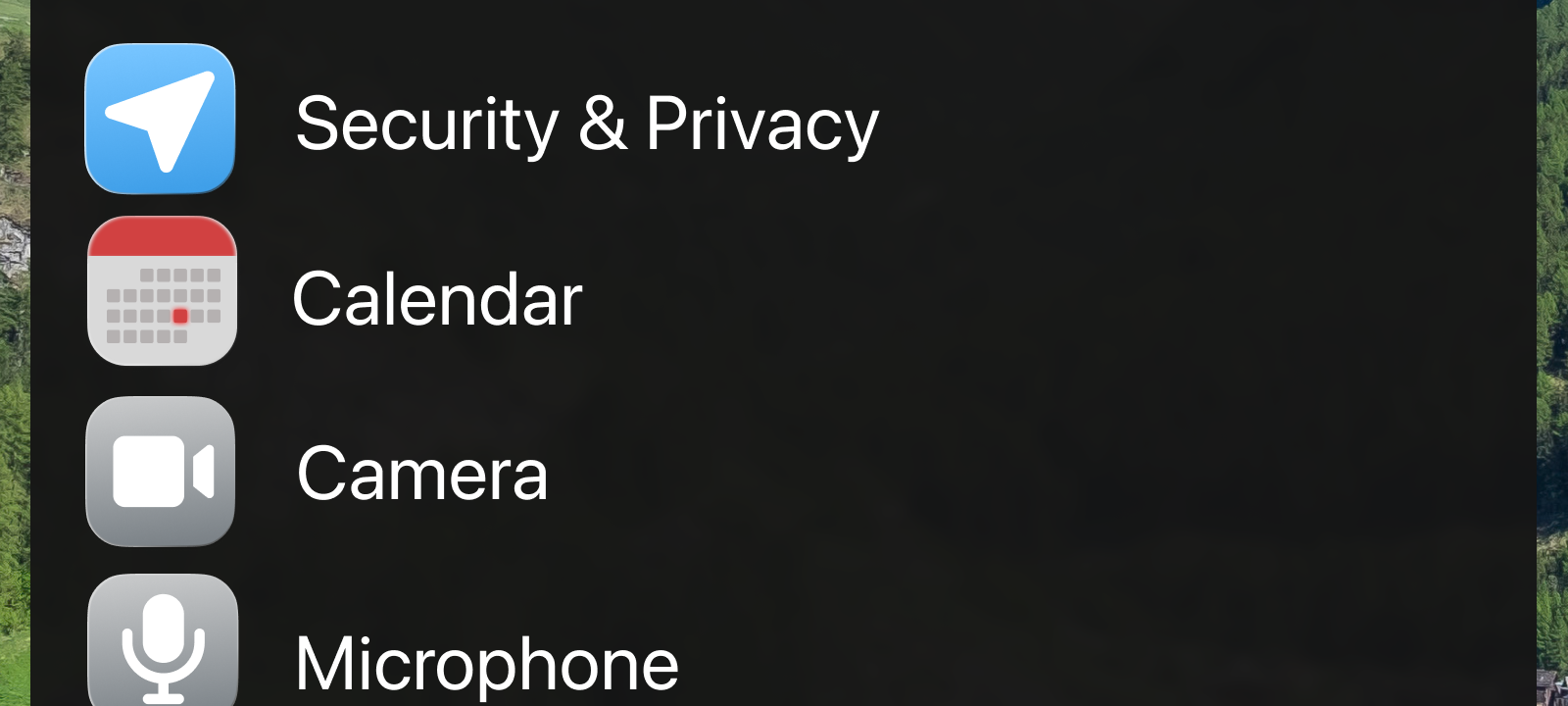
macOS uses a system called TCC (Transparency, Consent, and Control). It’s what prompts you when an app wants access to:
- Your Documents folder
- Downloads
- Photos
- Camera
- Microphone
- Screen recording
- Full disk access
Most users assume these prompts are absolute barriers. In reality, they are very strong — but not perfect.
Recent Privacy Bypass Vulnerabilities
Security researchers recently disclosed a vulnerability that allowed attackers to bypass some TCC protections under specific conditions.
This does not mean:
- Every Mac is suddenly exposed
- Apple security is broken
- Malware can instantly spy on you
It does mean:
- Attackers continue to study macOS closely
- Even advanced protections can be weakened
- Keeping macOS updated is critical
Apple patched the issue quickly, which shows how seriously these flaws are taken.
Why macOS Is Being Targeted More Than Ever
Macs Are No Longer “Niche”
Mac adoption has grown rapidly in recent years:
- More people work from home
- Macs are common in creative fields
- Many users assume Macs don’t get malware
Attackers follow users, not platforms.
The Rise of Professional macOS Malware
Modern macOS malware is:
- Quiet
- Targeted
- Designed to steal data, not break your system
The most common threats today include:
- Infostealers
- Credential harvesters
- Browser session hijackers
- Cryptocurrency wallet theft
You often won’t see pop-ups or warnings. Your Mac keeps working normally — while data quietly leaves your system.
Infostealers: The Most Common macOS Threat Right Now
What Infostealers Do
Infostealers focus on collecting:
- Saved browser passwords
- Autofill data
- Cookies and login tokens
- Notes and documents
- Screenshots
- Crypto wallets
They don’t usually:
- Lock your files
- Display ransom messages
- Crash your Mac
That’s what makes them dangerous.
How People Get Infected
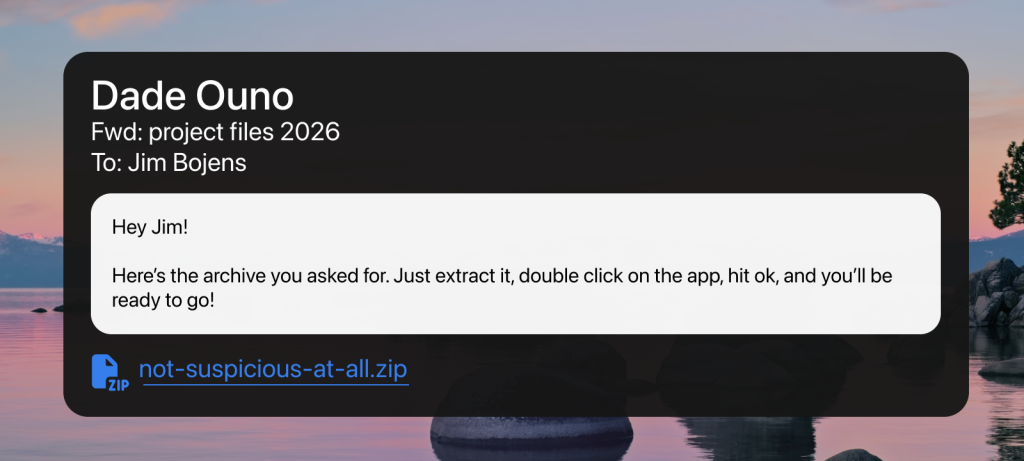
Most macOS infections still start with human behavior, not software bugs:
- Fake software updates
- Malicious email attachments
- Cracked or pirated software
- Fake job interview tools
- Trojanized apps
Once installed, malware often asks for permissions in ways that feel normal.
Why You Might Not Notice Anything Is Wrong
One of the hardest parts of modern macOS threats is silence.
Your Mac:
- Boots normally
- Runs fast
- Shows no alerts
Weeks later, you may notice:
- Account password resets you didn’t request
- Unauthorized logins
- Cryptocurrency missing
- Emails sent from your account
- Cloud storage accessed unexpectedly
By then, the original infection may be hard to trace.
Older macOS Versions Are Still at Risk
“I’m Not on the Latest macOS — Is That Bad?”
Not necessarily.
Apple continues to release security updates for older versions, including:
- Sonoma
- Sequoia
- Ventura (limited)
However, users who skip updates entirely remain vulnerable.
Why Updates Matter Even More Now
Many recent security fixes address:
- WebKit flaws (used by browsers and apps)
- Exploits already seen in the wild
- Bugs that allow silent data access
Delaying updates doesn’t just delay new features — it delays protection.
Built-In macOS Security: What You Already Have
macOS includes multiple layers of defense that work together:
Gatekeeper
Blocks untrusted or unsigned apps from running.
XProtect
Apple’s built-in malware detection system, updated regularly.
System Integrity Protection (SIP)
Prevents malware from modifying core system files.
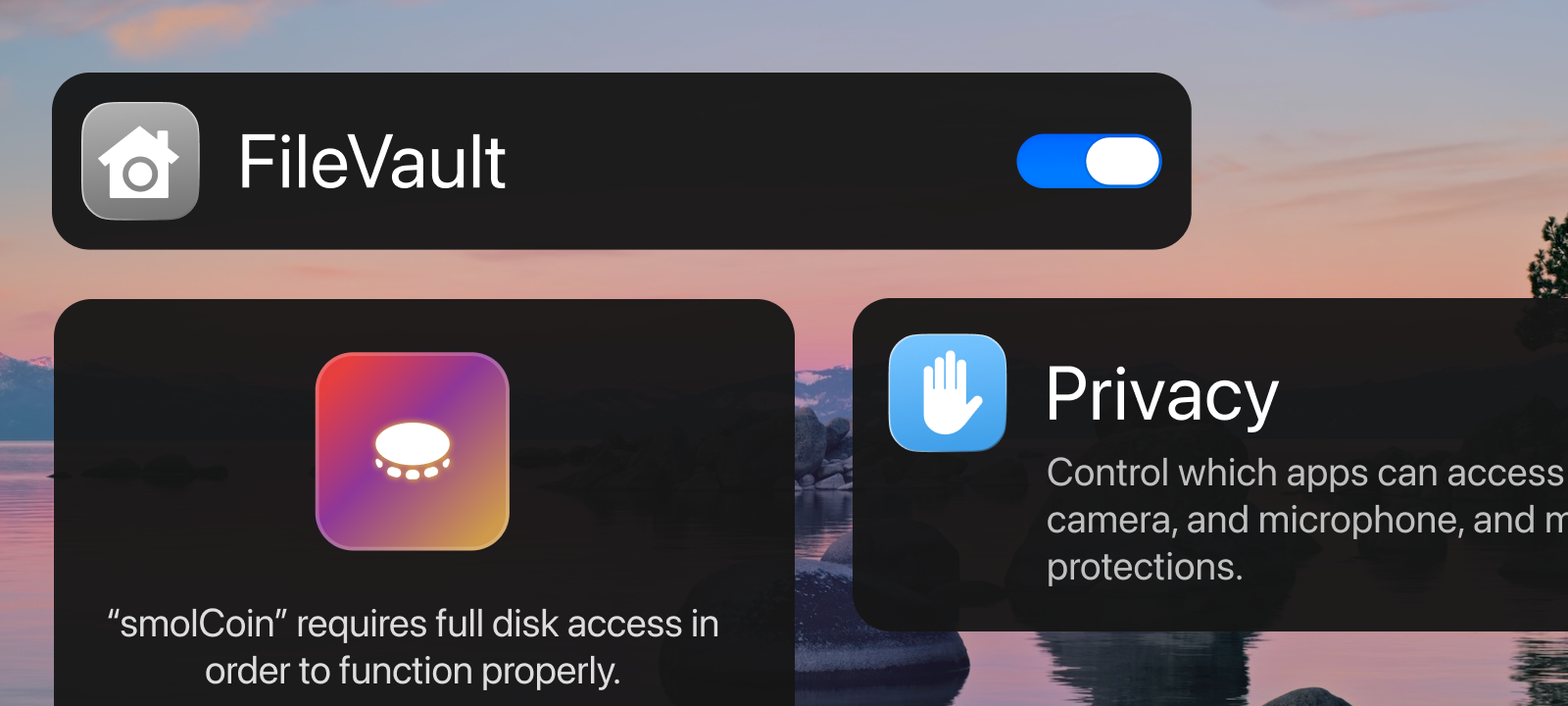
FileVault
Encrypts your disk so data can’t be accessed if your Mac is lost or stolen.
Privacy Permissions
Control access to sensitive data and hardware.
These tools are effective — especially when combined with good user habits.
Practical Security Advice for Home Users
You don’t need advanced tools to stay safe. Focus on consistency.
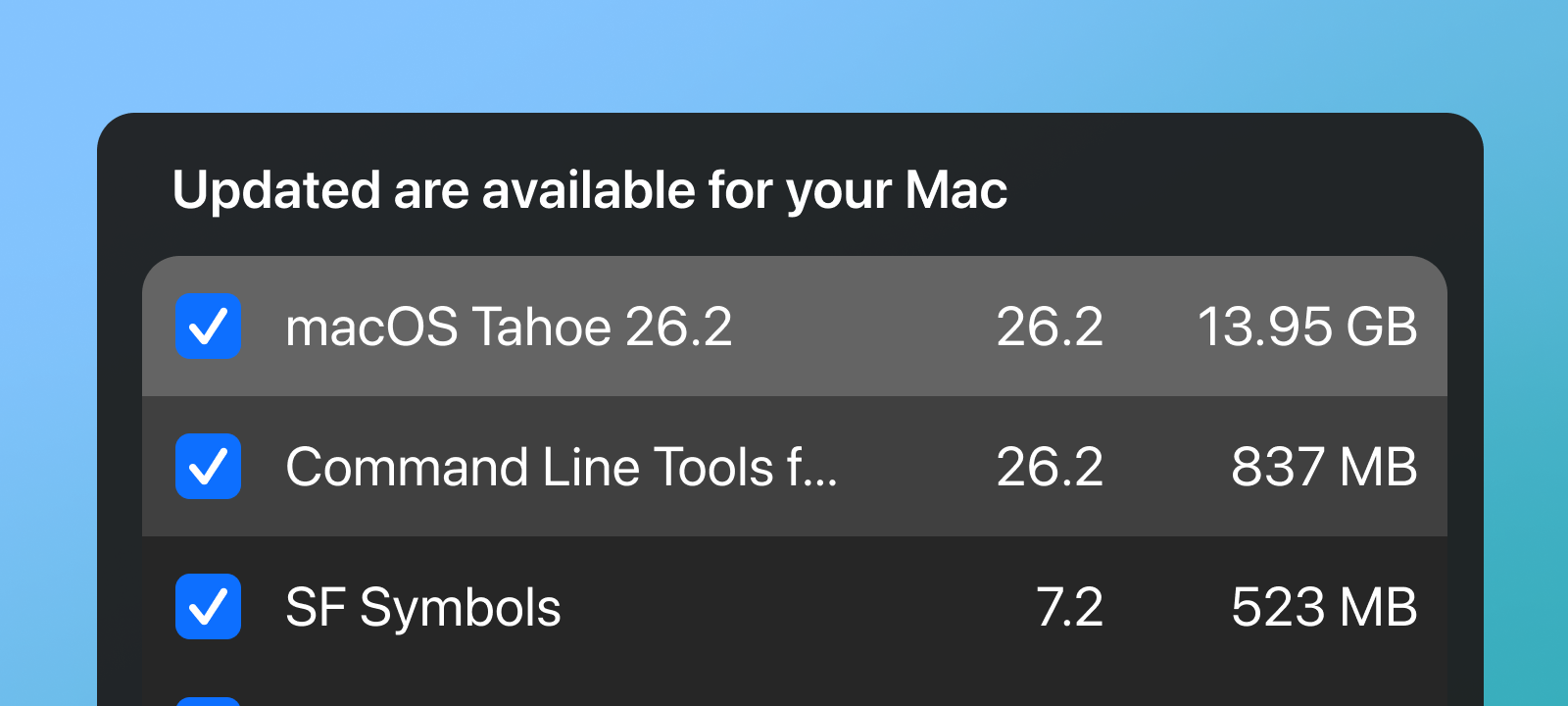
Keep Updates Enabled
Allow:
- Automatic security updates
- Background security updates
- Safari updates
Be Selective With Permissions
If an app asks for:
- Full disk access
- Screen recording
- Accessibility permissions
Ask yourself: Does this app really need this?
Avoid “Too Good to Be True” Software
Free tools, cracks, and unofficial downloads are still one of the top infection sources on macOS.
Passwords, Accounts, and Damage Control
Password Managers Matter
Using a password manager:
- Prevents password reuse
- Limits damage from breaches
- Makes phishing less effective
Two-Factor Authentication Is Essential
Even if malware steals your password, 2FA can stop attackers from logging in.
Enable it for:
- Apple ID
- Financial accounts
- Cloud storage
The Big Picture: macOS Is Secure — If You Let It Be
Apple continues to invest heavily in macOS security. Most successful attacks rely on:
- Social engineering
- User trust
- Outdated systems
The good news is that small habits make a big difference. You don’t need to be paranoid. You just need to stay informed.
Resources Used, Citations, & Further Reading
- MacRumors
macOS security update behavior - 9to5Mac
macOS security analysis and reporting - TechRepublic
vulnerability disclosures - Cybernews
macOS malware trend reporting - MacObserver
macOS security feature breakdowns - MITRE CVE database
https://cve.mitre.org - Apple Platform Security Guide
https://support.apple.com/guide/security/welcome/web - Apple Security Updates & advisories
https://support.apple.com/en-us/100100
 SecureMac is dedicated to cutting through the noise and helping people stay safe, informed, and confident with their Macs. Lover of all things mac-security.