When Mac Downloads Look Safer Than They Are
This week’s Apple security and privacy news was less about a giant new Mac bug and more about the everyday choices that keep a Mac safe. That is not a bad thing. For most people, the biggest Mac security risks do not arrive as dramatic Hollywood-style hacks. They usually show up as fake downloads, copied commands, suspicious installers, browser popups, too-good-to-be-true AI tools, and apps asking for more access than they really need.
The biggest consumer takeaway this week is simple: keep your apps updated, be careful with AI tools that ask for personal access, and never paste commands into Terminal unless you understand exactly what they do.
There was no major new Apple macOS security advisory with fresh CVE details during the June 11 to June 18 window. Apple’s current security releases page still lists macOS Tahoe 26.5.1 as the latest macOS version, released earlier this month with no published CVE entries. That does not mean there is nothing to do. It means this is a good week to focus on the security stories that affect daily Mac use: safer command pasting, AI privacy, trusted app updates, and family safety controls.
Apple’s new Terminal warning is a good sign for Mac users
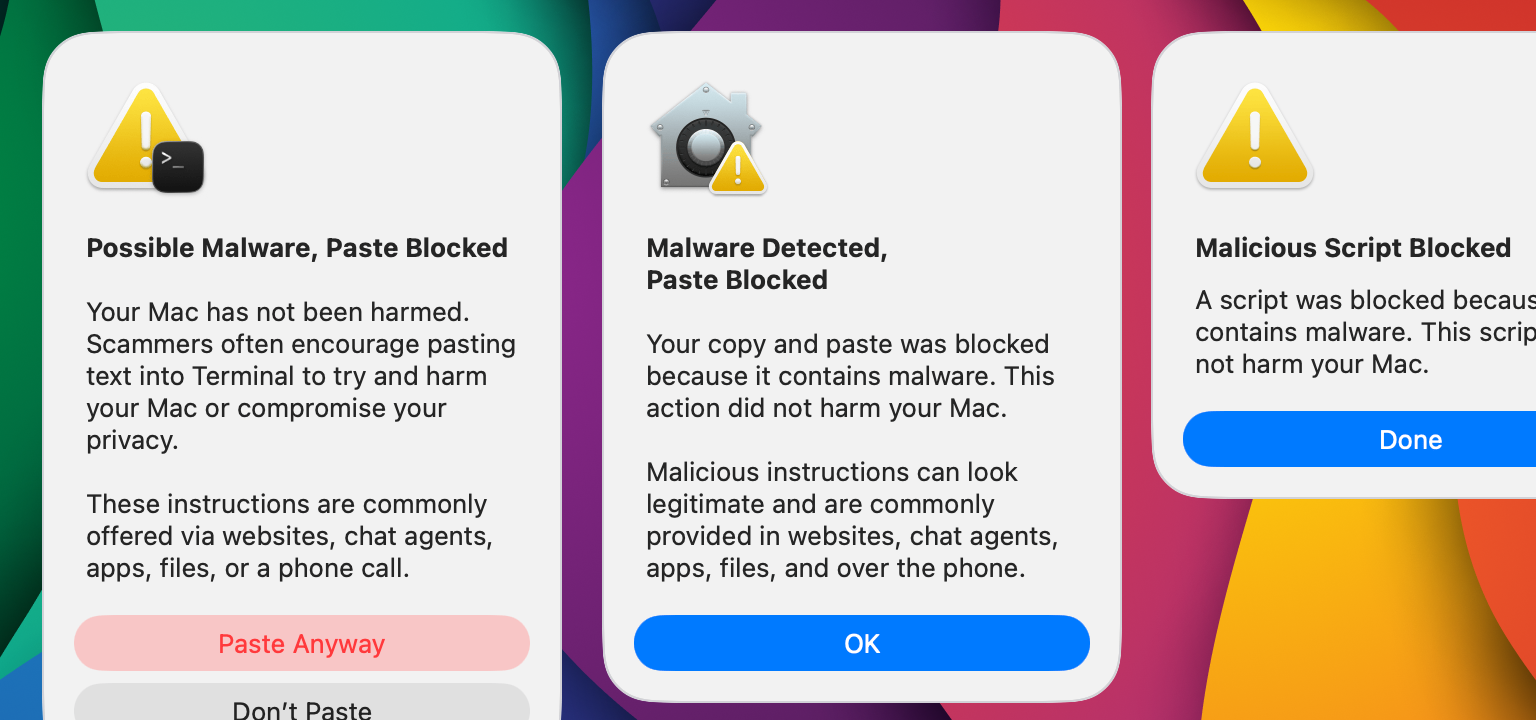
Apple recently published clearer guidance about a macOS warning that can appear when someone tries to paste a command or run a script in Terminal. Apple’s support article, If your Mac blocks a Terminal command paste or script, matters because scammers often tell people to copy and paste commands from a website, chat message, email, or fake support page. The command may look like a “fix,” but it can actually install malware, steal passwords, or change settings on the Mac.
Apple’s guidance says the alert can appear when macOS detects suspicious paste activity or known malware in commands and scripts. The most important part is the plain-language advice: if the Mac blocks the paste, the Mac has not been harmed yet. The risky step is continuing anyway.
This is a helpful security feature because it interrupts a common scam pattern. A person searches for help, lands on a convincing page, gets told to paste a command into Terminal, and assumes it must be safe because it looks technical. The scam works because Terminal commands can do powerful things. A command can download files, change permissions, run scripts, or give an attacker access to private data.
This is not a reason to be afraid of Terminal. It is a reason to treat Terminal like a power tool. It is useful when used carefully, but it should not be used just because a random website, chat post, ad, video comment, or direct message says to use it.
A good consumer rule is this: if a fix requires copying a command into Terminal, stop and verify it through a trusted source first. A legitimate support article should explain what the command does. A scam usually pressures people to act quickly and gives little explanation.
OpenAI’s Mac app update is a good reminder about trusted software
OpenAI updated its guidance about a supply chain security issue connected to a compromised open-source library. In OpenAI’s response to the TanStack npm supply chain attack, the company said it found no evidence that user data was accessed, that production systems were compromised, or that OpenAI’s published software had been altered. Still, OpenAI is rotating signing certificates and telling macOS users to update affected OpenAI apps by June 12, 2026.
For Mac users, the lesson is bigger than OpenAI. It shows why app updates matter even when nothing seems broken. On macOS, signing certificates help confirm that an app really came from the developer it claims to come from. When a company rotates certificates, older app versions may stop receiving updates or may not work properly after a cutoff date.
The safest path is to update through the app itself or from the developer’s official website. OpenAI specifically warns users not to install ChatGPT, Codex, or related apps from links in emails, messages, ads, file-sharing links, or third-party download sites. That advice applies to almost every Mac app.
This is especially important now because fake AI apps are everywhere. Scammers know people are curious about ChatGPT, Claude, Grok, image generators, coding assistants, writing tools, and “AI productivity” apps. A fake installer can look polished. A fake download page can look professional. A fake ad can appear above a real search result.
The safest habit is boring, but effective: open the app, use its built-in update option, or type the official website address yourself. Do not trust a surprise installer that arrives through email, text, social media, search ads, or popups.
Apple AI and privacy: useful, but worth understanding
Apple’s recent AI announcements are still driving privacy discussions this week. In Apple’s WWDC26 announcement and its separate article introducing Siri AI, Apple describes a more capable assistant that can use personal context, screen awareness, and information from apps to help people get things done.
That sounds useful. It also raises a fair question: how much should an assistant be able to see?
For a Mac user, the practical answer is to treat AI access like app permissions. A feature that can summarize private email, find photos, search files, write messages, or act across apps needs a higher level of trust than a basic calculator or weather app. It is not enough for an AI feature to be impressive. It also has to be understandable, controllable, and easy to turn off or limit.
Apple has put privacy at the center of its AI messaging, but people should still make their own comfort decisions. Some people will be comfortable letting AI help sort personal files, summarize messages, or create replies. Others will prefer to keep AI tools away from sensitive folders, medical information, financial records, private photos, or work documents.
The best consumer guidance is not “avoid AI.” It is “give AI only the access it needs.” Check privacy settings. Pay attention when an app asks for access to files, contacts, photos, microphone, camera, screen recording, or automation controls. If an app does not need that access for the task at hand, deny it.
The EU Siri AI debate shows the privacy challenge ahead
Apple also said Siri AI will not launch on iPhone and iPad in the European Union at the same time as elsewhere because of its disagreement with regulators over the Digital Markets Act. Apple’s announcement, Due to DMA, Siri AI delayed in EU for iOS 27 and iPadOS 27, says EU users will still be able to access Siri AI on macOS 27 and visionOS 27, but not on iOS 27 or iPadOS 27 at launch.
The details are complicated, but the consumer issue is easy to understand. Apple says that opening deep assistant access to competing AI systems could create privacy and security risks if those systems can read messages, access files, make purchases, or act inside apps without enough protection.
That concern is not just about Apple. It points to a larger problem that every AI platform will have to solve. People want AI assistants that can help with real tasks. But the more useful an assistant becomes, the more access it may need. A weak or poorly controlled assistant could become a new way for attackers to steal private information or trick people into harmful actions.
For Mac users, the safest approach is to be cautious with any AI assistant that asks for broad system access. More access means more convenience, but it also means more risk if the assistant is compromised, misled, poorly designed, or connected to a service with weak privacy practices.
Child safety updates are worth watching for family Macs
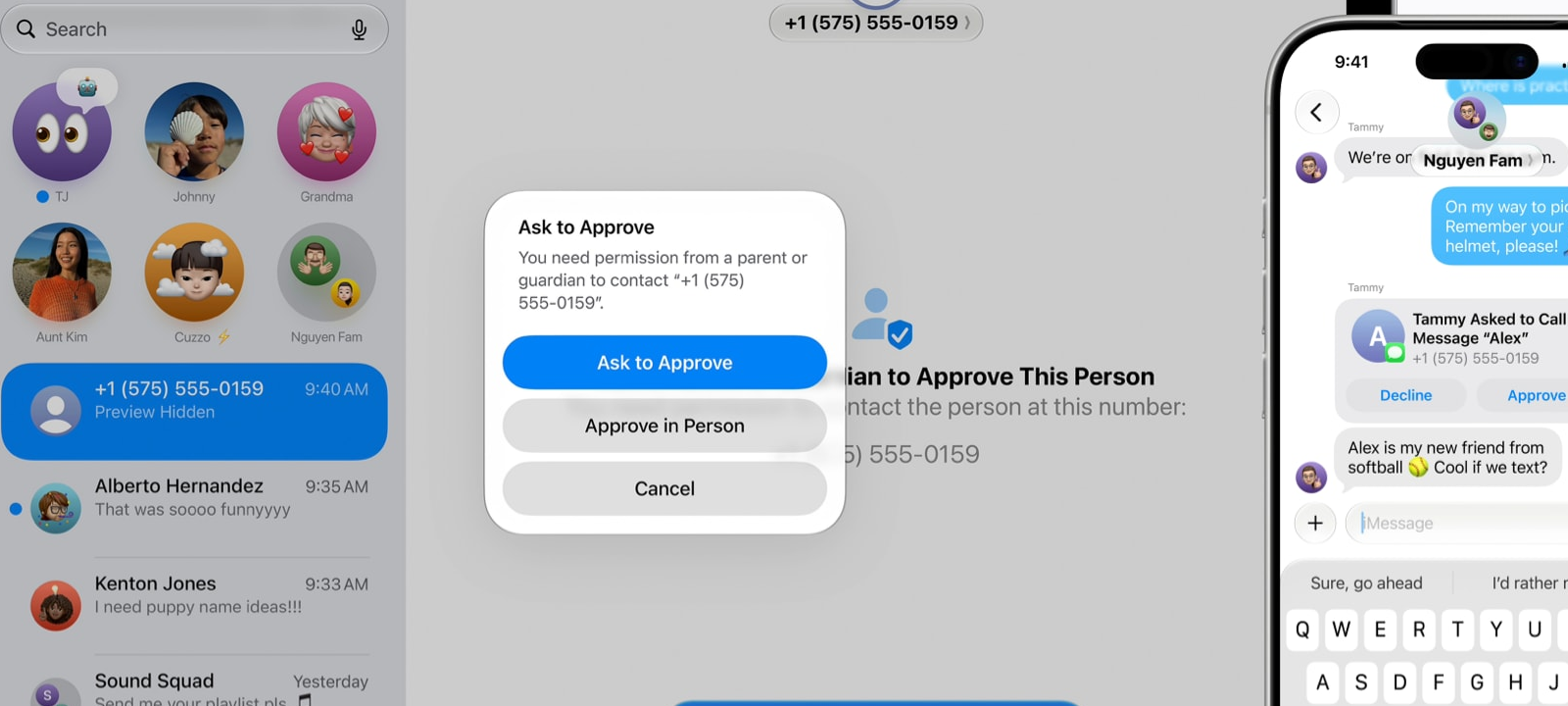
Apple previewed new child safety and parental control features that are expected with future software updates, including macOS 27. Apple’s article, Apple previews new child safety features, describes easier child account setup, stronger Screen Time tools, Ask to Browse, Time Allowances, and more ways for parents to manage who children can communicate with. Apple also says Communication Safety will continue to blur nudity in Messages and FaceTime for users under 18 and will expand to block gore or violent content in shared images or videos.
For families, these features are worth watching because they move safety controls closer to everyday use. Many parental control tools are powerful but confusing. When controls are too hard to understand, families often leave them off. A simpler setup process can make a real difference.
The privacy detail is also important. Apple says developers can use an age-range system that does not share a child’s exact birthday. That is the right direction. Children need safer online experiences, but safety tools should not require unnecessary personal data collection.
A practical family Mac setup should include a separate child account, Screen Time settings, web content limits when appropriate, app download approval, and regular conversations about scams, strangers, private photos, passwords, and suspicious links. Tools help, but they do not replace communication.
Anthropic: Claude keeps moving into serious workplaces
Anthropic announced a partnership with Tata Consultancy Services this week. In its announcement, TCS and Anthropic partner to accelerate enterprise AI transformation, Anthropic says TCS plans to provide Claude to 50,000 employees across 56 countries and build Claude-powered products for industries such as financial services, healthcare, and the public sector.
This is not directly a Mac security story, but it matters because AI tools are becoming part of normal work. Many people use the same computer for work, family, finances, and personal projects. As AI becomes more common in regulated industries, people should get used to asking basic privacy questions before uploading files or pasting sensitive information into any AI tool.
For home users, the lesson is simple: do not paste private documents, tax forms, medical records, passwords, recovery keys, or confidential work files into an AI tool unless you understand how that service handles the data. If an employer provides an approved AI tool, use that for work instead of a personal account.
OpenAI: Lockdown Mode and Mac app updates are consumer-friendly security topics
OpenAI’s Lockdown Mode is also worth noting. OpenAI’s post, Introducing Lockdown Mode and Elevated Risk labels in ChatGPT, says the feature is rolling out to personal ChatGPT accounts and self-serve ChatGPT Business accounts. It is designed for people who want a more conservative ChatGPT experience when working with sensitive information or connected features.
For regular users, this is the kind of AI setting that should become more common. Not every conversation needs maximum connectivity or every available feature. Sometimes the safest setting is the one that limits what the tool can do.
The Mac app certificate update is the more urgent OpenAI story this week. Anyone using affected OpenAI desktop apps on macOS should update through official channels before the June 12 deadline. The broader advice is to keep AI apps updated, avoid third-party installers, and be suspicious of fake “urgent update” messages.
xAI, Grok, and SpaceXAI: privacy and safety concerns continue
The user-facing name to watch is still Grok, and the official company site still presents xAI as the maker of Grok. This week, xAI’s news page listed several Grok product updates, including Grok for Word, Grok on Databricks, Grok on Amazon Bedrock, Grok Imagine Video 1.5, and Grok for PowerPoint.
At the same time, Grok and xAI continue to face privacy and safety scrutiny. A June 11 report from The Guardian, Elon Musk’s xAI sued by fired engineer who says he raised Grok safety concerns, described a lawsuit from a former xAI engineer who claims he was fired after raising safety concerns about Grok. The same report also described Canadian privacy findings related to non-consensual sexualized deepfakes and broader concerns around Grok’s image-generation features.
For a consumer security article, the key point is not corporate drama. It is that AI image and assistant tools can create real privacy harm when they are misused or poorly controlled. Deepfake abuse, impersonation, non-consensual image editing, and fake content are no longer abstract concerns.
People should be careful about uploading personal photos to AI tools, especially photos of children, private moments, IDs, medical documents, or anything that could be embarrassing or harmful if misused. Before using an AI image tool, check whether images may be stored, used for training, shared with partners, or kept in account history. When in doubt, do not upload the image.
Bottom line
This week’s Mac security story is not about one huge emergency patch. It is about practical security habits that matter every day. Apple is making macOS better at warning people before they paste dangerous commands. OpenAI is asking Mac users to update apps because of certificate changes tied to a supply chain incident. Apple’s AI privacy debate shows how powerful assistants may need careful limits. Anthropic, OpenAI, and xAI are all pushing AI deeper into everyday tools, which makes privacy choices more important.
The best advice is still simple. Keep the Mac updated. Install apps only from trusted sources. Treat Terminal commands with caution. Give AI tools limited access. Think twice before uploading private files or photos. These habits are easy to understand, and they do more to protect a Mac than most people realize.
 SecureMac is dedicated to cutting through the noise and helping people stay safe, informed, and confident with their Macs. Lover of all things mac-security.